Images are not interchangeable simply because they look alike on a screen. A JPEG photograph, a PNG screenshot, a vector SVG logo, and an AVIF hero image may render similar pixels while making very different choices about compression, sharp edges, color, transparency, and future editability. This handbook explains those choices, then gives you a repeatable method for measuring results with your own files.
Practical rule: Keep an editable source when possible; publish an export selected for the destination. Re-encoding a damaged or heavily compressed source cannot restore the details that were discarded.
1. Start with pixels, not extensions
A raster image is a grid of samples. A 2400 × 1600 photograph has 3,840,000 pixels. If each pixel is stored as three uncompressed 8-bit color channels, raw RGB data alone takes 11,520,000 bytes (about 11.0 MiB). A four-channel 8-bit image requires approximately 14.6 MiB before container metadata and compression. This is a calculation, not a measured file size; actual PNG, JPEG and AVIF exports can vary dramatically depending on image content and encoder settings.
Vector graphics, such as SVG, describe shapes, paths, fills and text-like structures instead of storing one fixed sample for every displayed pixel. They can scale cleanly, but an SVG's appearance may depend on fonts, external assets and rendering implementation. SVG also needs security care when accepting untrusted markup. A PNG export of an SVG loses the advantage of resolution-independent shapes.
A filename extension is only a clue. photo.jpg can contain unexpected bytes; an app may rename a format without transcoding. For unknown files, examine the file signature with our Universal File Inspector and confirm the actual type before trusting the extension.
2. Lossy, lossless and why size alone misleads
Lossless compression stores data so that the original decoded samples can be recovered exactly. PNG uses lossless compression; lossless WebP is another option. Lossy compression removes or approximates visual information to reduce the output size. Ordinary JPEG uses lossy coding, and WebP and AVIF also offer lossy modes.
In a JPEG, blocking, ringing, mosquito noise, and smeared text edges may become apparent at aggressive settings. Smooth skies can show banding; synthetic diagrams with hard one-pixel lines may acquire colored halos. More aggressive compression can help delivery speed but harm visual correctness. An output may be smaller because it discarded detail, not because its encoder is intrinsically superior.
Re-saving JPEG → PNG does not turn lost information back into original detail: it stores the already-decoded approximation inside a lossless container. Likewise, repeatedly exporting a compressed video frame as JPEG can accumulate artifacts. For working assets, retain the highest-quality available source, and generate delivery sizes from that source.
3. JPEG, PNG, WebP, AVIF, GIF, SVG and HEIC compared
| Format | Strength | Important tradeoff | Typical role |
|---|---|---|---|
| JPEG | Compact photographs, broad compatibility | Lossy; no alpha transparency | Photos, legacy sharing |
| PNG | Exact raster samples, alpha, sharp text | Often larger on photographs | Screenshots, UI, diagrams |
| WebP | Lossy/lossless, alpha, animation | Encoder and destination compatibility vary | General web raster images |
| AVIF | Efficient modern coding, HDR/alpha possibilities | Encoding can be slower; software support varies | Tested web delivery pipelines |
| GIF | Simple animations and legacy compatibility | 256-color palette and limited efficiency | Legacy animated graphics |
| SVG | Small scalable shapes and diagrams | Not a photographic raster; can contain active markup | Icons, diagrams, logos |
| HEIC/HEIF | Efficient photo storage on supported ecosystems | Acceptance varies by app and workflow | Camera and mobile photo workflows |
HEIF is a family of containers, and HEIC commonly refers to HEIF images encoded with HEVC. A file being named .heic does not guarantee every application can decode it. Likewise, .avif support in a browser's image decoder is not evidence that the same browser can encode AVIF using its canvas APIs.
4. A decision matrix for real tasks
| Task | First format to test | What to verify |
|---|---|---|
| Photograph for a website | WebP or AVIF, with JPEG fallback as needed | Detail, final bytes, decoding support |
| Small-text screenshot | PNG or lossless WebP | One-pixel strokes, text, exact colors |
| Logo with transparency | SVG if trusted and suitable; otherwise PNG/WebP | Alpha edges on light and dark backgrounds |
| Image with gradients and shadows | WebP, AVIF, JPEG | Banding in subtle tones; edge artifacts |
| Archival working master | Lossless original or an appropriate professional format | Metadata, color profile, future editing |
| Sharing with unknown legacy software | JPEG or PNG | Recipient application support |
No format is “best” for every image. A photograph with sensor noise will compress very differently from a flat logo. Export dimensions and quality settings also matter: a 1200-pixel-wide image usually needs fewer bytes than an equivalent 4000-pixel-wide image, but resizing can harm detail. Compare outputs at the same dimensions and inspect them at the size that users will see.
5. Transparency is not a white background
An alpha channel represents opacity. PNG and modern WebP/AVIF may preserve alpha; JPEG does not. Exporting transparent artwork to JPEG normally requires flattening the image onto a chosen background, so the original transparency cannot be reconstructed from that JPEG export.
For a logo, inspect antialiased edges on both light and dark backgrounds. White halos may come from a matte background baked into semi-transparent pixels. A format can technically support alpha while a particular application drops it; verify by downloading and reopening the actual output.
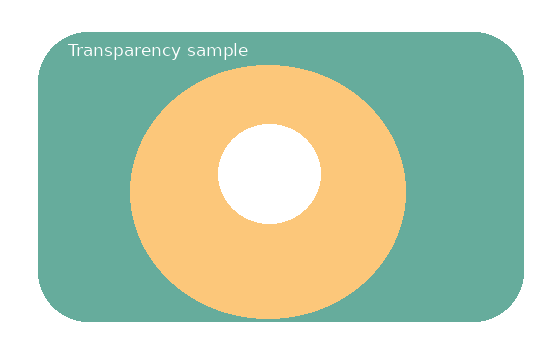
Try the transparent sample PNG in our Image Format Comparison Lab. Record which outputs preserve transparency, and note whether unsupported exports are honestly reported rather than silently substituted.
6. Colors, profiles, chroma and high dynamic range
Most everyday web images are designed around sRGB, but modern photographs can use wide-gamut color and higher bit depth. An embedded ICC profile helps color-managed applications interpret samples. Dropping the profile may change appearance, especially when moving from a wide-gamut source into an sRGB workflow. AVIF offers options for more sophisticated color representations, but support and correct display depend on the whole chain.
JPEG encoders commonly reduce chroma resolution using subsampling such as 4:2:0. This can save space because the human visual system is generally more sensitive to luminance than chroma differences; however, colored text and sharp red/blue edges may look worse. Do not assume a higher numeric 'quality' slider in one application equals the same quality in another encoder. Quality scales are implementation-specific.
Color-check workflow: compare a neutral gray ramp, saturated colors, dark gradients, and a patch of small colored text. Look at the export in the target browser and, if color accuracy matters, a color-managed editor. Keep original files with profiles when practical.
7. Run a reproducible comparison instead of guessing
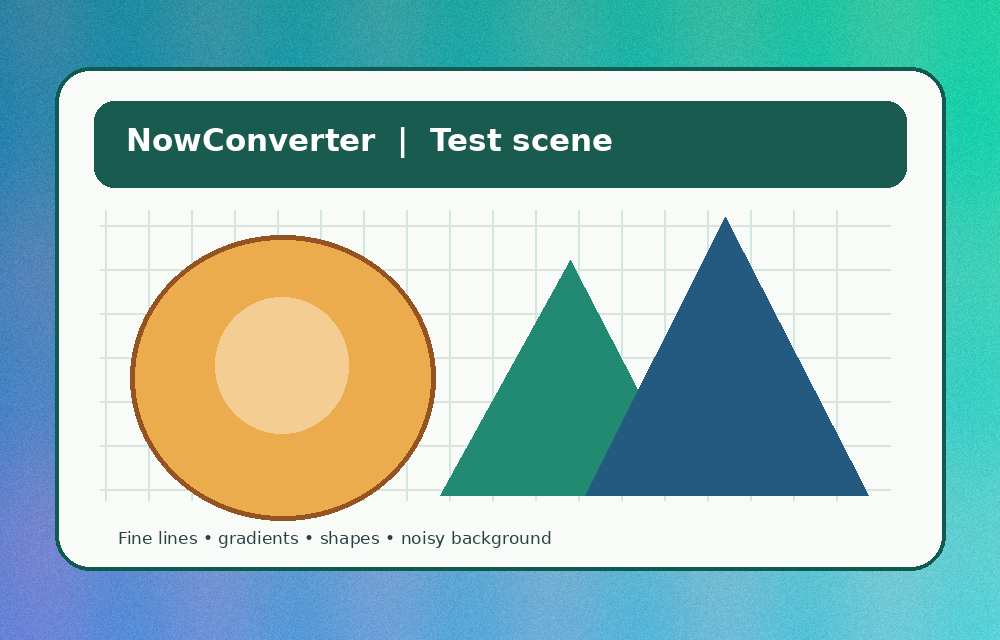
- Download our original format test scene. It contains edges, color areas and gradients created for the site. Use the same source for every test.
- Open the live format comparison lab. Set a quality level; the lab reports actual output sizes for formats your browser can encode.
- Write down the browser, OS, source dimensions, output format and size in bytes. A quality value of 80 is only meaningful when you name the encoder that used it.
- Compare the preview with the original at 100% scale, particularly text edges and smooth color transitions. Open each downloaded file in the intended destination application.
- Repeat with the transparent test scene. Document alpha preservation separately from file size.
- Repeat with your own photograph. A synthetic sample alone cannot represent photographic texture, noise and lens detail.
Experiment record template: Source / pixels / browser / export format / quality setting / bytes / visual problems / destination support. Publish a measurement only with the test conditions. We deliberately do not claim that one format saves a fixed percentage for every image.
8. Use responsive exports without confusing resolution and quality
For web delivery, avoid giving a small phone viewport the same huge image intended for a desktop hero. srcset and sizes can help browsers select an appropriate file size; <picture> can offer modern formats with a stable fallback. Treat the browser's selection as part of testing, not as an invitation to upscale tiny originals.
<picture>
  <source srcset="scene.avif" type="image/avif">
  <source srcset="scene.webp" type="image/webp">
  <img src="scene.jpg" alt="Illustrative landscape" width="1200" height="800">
</picture>
The example assumes you have actually created those three files and tested their decoding support. It does not generate the formats automatically. Provide meaningful alternative text; compression does not solve accessibility.
9. Troubleshooting unexpected outcomes
AVIF absent from the results? A browser may decode AVIF but lack an encoder exposed through canvas.toBlob. Do not relabel a PNG as AVIF. Use an encoder that actually supports AVIF and validate the output type.
PNG larger than JPEG? Expected on many photographs. PNG stores precise samples and high-frequency detail is costly to encode losslessly. Use the original or lossless copy for editing, and a tested lossy export for distribution.
Text looks blurry in WebP/JPEG? Try lossless PNG/WebP and avoid resizing tiny text. Quality sliders cannot always recover edges lost to an earlier conversion.
Transparent logo gained a white rectangle? JPEG has no alpha channel. Export PNG, lossless WebP, or an appropriately sanitized SVG.
Colors shifted? Inspect profile handling, transparency flattening and whether the viewer is color-managed. Compare in a second viewer before blaming the image codec.
Image cannot be opened? Verify actual file bytes with the File Inspector, not just the extension. Some formats contain unsupported variations.
10. A practical publishing checklist
- Preserve the original editable or lossless image; avoid repeated lossy-to-lossy conversions.
- Resize deliberately, not merely to chase a smaller file.
- Verify visual sharpness, alpha and color in the target application.
- Record byte size and visual results instead of declaring a universal winner.
- Offer compatible fallbacks where the audience or software requires them.
- Inspect embedded metadata before sharing sensitive photos; see the Privacy and Metadata Handbook.
Try it now: Image Converter · Image Compressor · Format Lab · Sample Library.
Technical references
- MDN: Image file type and format guide — features, codecs, format and fallback considerations.
- MDN: Responsive images — selection by viewport and display density.
- CIPA standards — standards relevant to EXIF and digital imaging.